Troubleshooting
The hotkeys do nothing in one particular window
Almost always: that window belongs to a process running as administrator, and AltTab is not. Windows does not let a normal process see keystrokes aimed at an elevated window, so AltTab never learns you pressed anything. Everywhere else it keeps working, which is what makes it look inconsistent rather than broken.
The fix is to run AltTab elevated as well: Always run as Administrator in the tray menu, which registers its startup task with highest privileges so it happens without a prompt each time.
The hotkeys do nothing anywhere
Work down this list:
- Is it disabled? Look at the tray icon: disabled, it is grey and its tooltip ends with (disabled). Double-click the icon to bring it back. See the tray icon.
- Is that hotkey switched off? Each of the three has its own check box on the Hotkeys page.
- Are two of them set to the same combination? The Hotkeys page says so in red. Only one of the two can answer.
- Is something else already using it? A remote-desktop or virtual-machine window with the keyboard grabbed, a game, or another switcher replacement will take Alt+Tab first. Give AltTab a different combination, or disable it while you use the other thing.
- Is it running at all? With
[General] SystemTrayIconEnabledoff there is no icon to look at. Check Task Manager forAltTab.exe.
The switcher opens but the keyboard does not reach it
Arrows and Delete do nothing, and only pressing the hotkey again wakes it up.
Windows refuses to give the foreground to a process that is neither in front nor the one that received the last input event — and installing a keyboard hook makes AltTab neither. AltTab handles this, and also delivers the navigation keys itself when the foreground was refused, so the case is largely covered. If you do see it, pressing the hotkey again is the recovery, and it is worth mentioning in a report: which window was in front matters.
One case cannot be worked around: while an unresponsive window holds the foreground, Windows discards injected and hooked input before anyone sees it. Nothing in AltTab can act until that window is dealt with.
A window will not close
Close asks the window to close, so anything with unsaved changes or a modal dialog open can decline. That is the application's choice. Terminate (Shift+Delete) does not ask — and loses the unsaved work.
If both do nothing at all, the process is probably elevated and AltTab is not; see the top of this page.
Settings changes do nothing
- After editing
AltTabSettings.iniby hand, AltTab notices the file changing and reloads it. If it has not, use Reload AltTabSettings.ini in the tray menu, or Undo in the dialog — which discards what is on screen by re-reading the file. - A key spelled wrongly is not an error — it is a default. AltTab reads the keys it knows and ignores everything else, so
Transparency=255(the real key isWindowTransparency) silently does nothing. Check the spelling against the settings reference, or use the dialog's Advanced page, which lists every key it actually reads. - A colour came back after picking a theme. Selecting a theme loads its colours into the colour settings, so it overwrites what was in them — there is no longer a mode where a palette sits on top of colours it leaves alone. Change the theme with edited colours showing and AltTab asks first, and Save as... is how a set of colours is kept somewhere a later theme cannot reach. See Appearance and themes.
The switcher is on the wrong monitor
[General] SwitcherMonitor: Cursor, Active window or Primary. On the Appearance page.
Windows are missing from the list
Three settings can each hide a window, and none of them reports anything when it does:
[General] CurrentMonitorOnlylists only the windows on the monitor the switcher opened on, so everything on your other screen is out. An empty list means that monitor has nothing on it, which is deliberate rather than a fault. See only the windows on one monitor.[ProcessExclusions], on the Processes page, hides whole executables — and it applies however the switcher was opened.- Alt+` is showing you one application on purpose. If the list looks short, check which hotkey you pressed; see switching within one application.
A window owned by an elevated process is a different case: it is listed, but a switcher that is not elevated cannot activate or close it. See the top of this page.
Some windows are missing on purpose
Several settings hide windows deliberately, and each is worth ruling out before suspecting a fault:
- Processes → Applications to hide, including the titles listed beneath it, which hide any window whose title contains one of them.
- Appearance → Virtual desktops: Current lists this desktop's windows only.
- Only the windows on this monitor, on the Appearance page.
- One row per application shows one window of each; → shows the rest.
- One of your own switchers lists only what its filter allows.
The corners are square, or jagged
Rounded corners are drawn by the desktop compositor only when the switcher is opaque (WindowTransparency=255) and you are on Windows 11. Below 255 the window is layered and the corners are clipped instead, which works but is aliased. See Appearance and themes.
Reporting a problem
Open About AltTab (Shift+F1, or the tray menu) and press Copy details. That puts the version, the build time, the architecture and the Windows build on the clipboard — everything needed to know which build you are looking at, which is the first question anyone reading a report has.
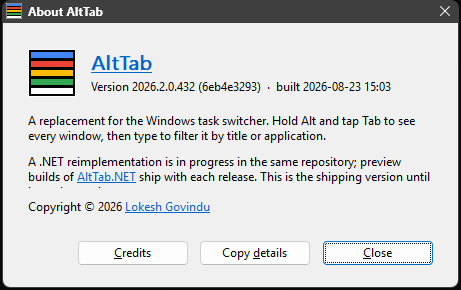
Worth adding to the report:
- What was in front when it happened, and whether that window was elevated.
- Whether AltTab itself is elevated — the About box says so on the version line, and only when it is.
- Your
AltTabSettings.ini, if the problem is about appearance or filtering. %LOCALAPPDATA%\AltTab\AltTab.log, if you are running a build that logs. The publishedReleaseNoLoggerpackage does not write one — theReleaseLoggerarchive in the same download area is the one to reproduce against when a log is asked for.
Reports go to sourceforge.net/p/alttab/tickets.