The switcher
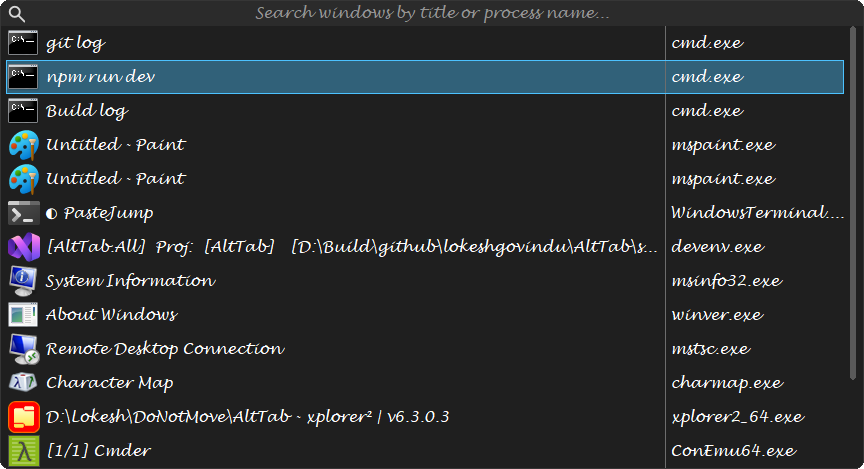
The window has two parts: a search box across the top, and the list of windows under it. It opens centred on one monitor, sized as a percentage of that monitor, and is only ever as tall as the rows it has.
Two things on this page change its shape rather than its detail, and both are settings: it can show a grid of large icons instead of a list, and it can carry a live picture of the window you have selected.
The search box
Type into it to narrow the list — you do not have to click it first, and you do not have to let go of Alt. It has a magnifier on the left and, once there is something to clear, a × button on the right.
The placeholder text, the font and the two colours are all settings; see Appearance and themes. The box can be switched off entirely ([General] ShowSearchString), in which case typing still filters and the text simply is not shown.
The list
One row per window, in most-recently-used order, so the window you were in before this one is second and is what the switcher selects when it opens. That is why tap Tab and release swaps between two windows.
Each row has the application's icon, the window's title, and — if [General] ShowColProcessName is on — the executable's name in a column of its own.
- The selected row is highlighted. Arrows, Tab and the mouse all move it; Enter, a click, or releasing the hotkey's modifiers activates it.
- A row whose window is not responding gets its own background colour (
[ListView] NotRespondingBackgroundColor), so a hung application is visible before you switch to it. The selected row keeps the selection colour, or it would stop being legible. - A window being closed fades and slides out over
[General] RowCloseAnimationMs, rather than vanishing between one refresh and the next.
The list refreshes about ten times a second, so windows that open, close or change title while the switcher is up are picked up without you doing anything.
Scrolling
When there are more rows than fit, a thin scrollbar appears down the right-hand side. It is AltTab's own — the system's is 16 or 17 pixels wide, which is heavy next to these rows — and it pages when you click the track, drags, and follows the mouse wheel. When everything fits there is no scrollbar at all and the list uses the full width.

The wheel scrolls the switcher wherever the pointer is, including over the search box.
Growing and shrinking
The switcher is only as tall as the rows it has, and the row count moves while it is open — windows open and close, and every keystroke narrows the list. It grows whenever it needs to, always: a row with nowhere to be drawn is a window nobody can reach.
Giving height back waits for a moment when nothing is being worked on, because a window that resizes under the pointer is worse than one that is briefly too tall:
- While there is anything in the search box it does not shrink at all. Deleting a character makes the list longer again, so a switcher that resized on every keystroke would move the rows you were reading. The empty strip under the last row of a narrowed list is that rule showing; clear the box and it goes.
- A close issued from the switcher holds the size for about a second, and for as long as the row is still fading. Closing several windows one after another is exactly when rows moving would cost you a click — see closing and terminating.
Otherwise it follows the list down. A background window closing by itself is neither of the cases above, so its row's height is reclaimed rather than left as a band under the last row.
The mouse
| Move over a row | Selects it, and outlines it if [MouseHover] ShowHighlightRect is on. |
| Rest on a row | Shows the information tooltip, after [MouseHover] TooltipDelayMs. |
| Click | Activates that window and closes the switcher. |
| Click the × on a row | Closes that window and leaves the switcher open. |
| Shift+click the × | Ends that window's process. |
| Middle-click a row | Closes that window and leaves the switcher open — the same as the ×, and it works in both views. |
| Shift+middle-click | Ends that window's process. |
| Right-click | The row's context menu. |
| Wheel | Scrolls the list. |
The information tooltip
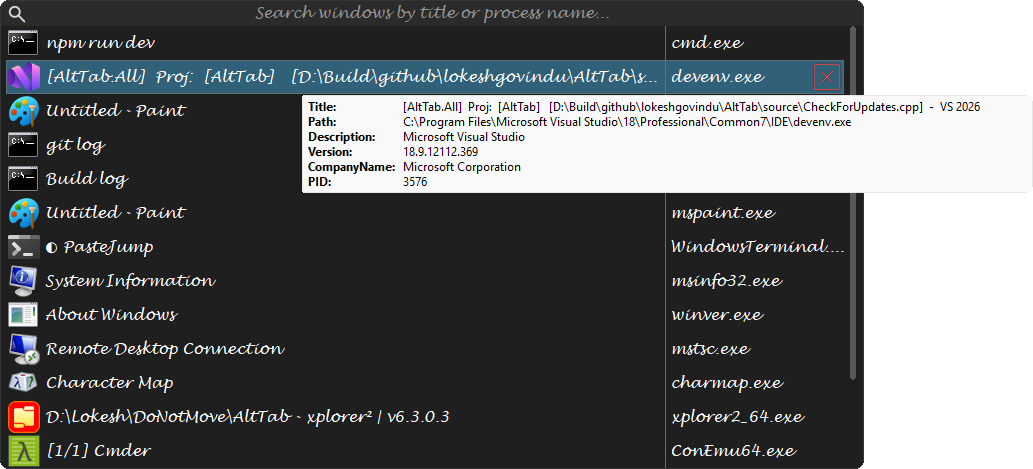
Rest the pointer on a row and it describes the window: title, full path, description, version, company and process id, plus Status: Not responding where that applies. Blank fields are left out rather than shown empty — an elevated process seen from a switcher that is not elevated has no readable path, and Path: with nothing after it looks like a fault.

Two details are deliberate. The pointer has to have moved before any tooltip appears: the switcher is opened from the keyboard and lands wherever the pointer already was, so a row can be "hovered" without anyone having pointed at anything, and a tooltip covering the list is not what a person reading it wants. And a keystroke puts them away until the pointer moves again, so tapping Tab does not trail tooltips behind it.
Turn it off with [MouseHover] ShowProcessInfoTooltip; change the wait with [MouseHover] TooltipDelayMs (0 shows it as soon as the pointer reaches a row — the movement rule still applies).
Two settings decide the weight of the two columns. [MouseHover] BoldTooltipLabels bolds the labels and is on; [MouseHover] BoldTooltipValues bolds the values as well and is off. The default is one heavy column and one light one on purpose — a two-column table works because the eye can run down the labels to find the line it wants, and bold throughout was tried and gives it nothing to run down. All four are on the Mouse page.
The close button
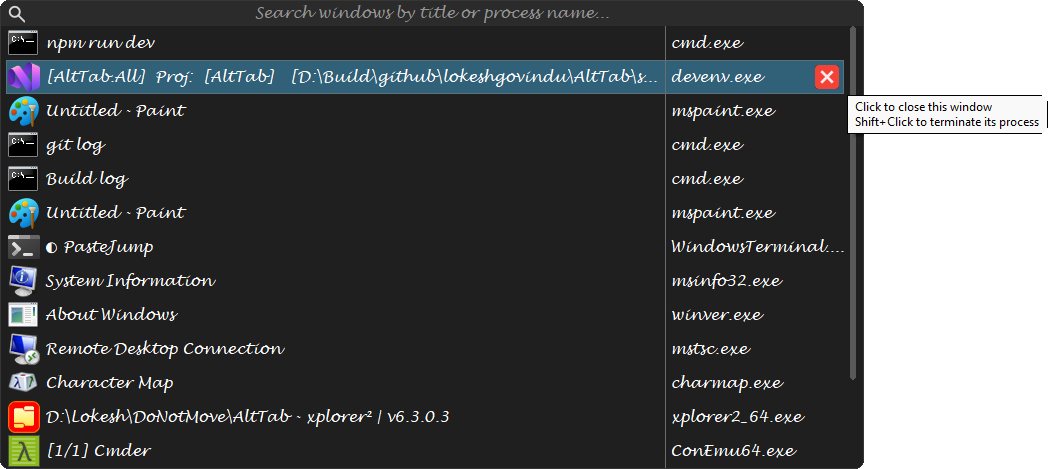
With [MouseHover] ShowDeleteButton on, the row under the pointer gets a × at its right-hand end. Clicking it closes that window without closing the switcher, so several windows can be closed one after another. Shift+click ends the process instead — see Closing and terminating for the difference.
The button has its own one-line tooltip, which replaces the row's while the pointer is on it.
The context menu
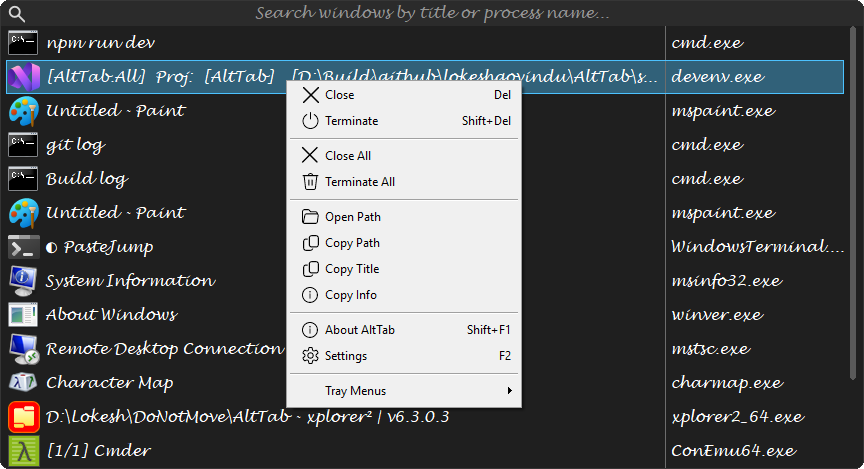
Right-clicking gives you everything that can be done to the selected row. It comes up anywhere in the switcher, not only on a row, and in the icons view anywhere in the grid — including the empty space past the last icon and the caption band. Right-clicking a row selects it first; right-clicking somewhere that is not a row leaves the selection alone and the menu acts on whatever is already selected.
The Apps key — the menu key next to right Ctrl on most keyboards — opens the same menu without the mouse, on the row or cell that is selected. In the list it appears at the selected row; in the icons view it appears at the centre of the selected icon — the menu acts on one window, so it comes up on that window.
Escape closes the menu, not the switcher. You can keep Alt held down the whole time: press Escape once to put the menu away and the switcher is still there, with the same window selected. A second Escape closes the switcher as it always does.
| Close (Del) | Ask the window to close. |
| Terminate (Shift+Del) | End the process. |
| Terminate the Process Tree | End the process and every process it started. Asks first; No is the default. |
| Minimize / Maximize / Restore (Ctrl+M / X / R) | Minimize leaves the switcher open; the other two go to the window. |
| Move to the Next Monitor (Ctrl+O) | Go to the window on the next monitor, in the same place on it. Greyed out with one monitor. |
| Run a New Copy (Ctrl+N) | Start another copy of the program, at your own level even when AltTab is elevated. Greyed out where there is nothing to run. |
| Quit the Application (Ctrl+Q) | Ask every window of the application to close. |
| Close All / Terminate All | The same, to every window in the list. Asks first, unless you have turned [General] PromptTerminateAll off. |
| Open Path | Opens the folder the executable is in. |
| Copy Path / Copy Title | To the clipboard. |
| Copy Info | Everything the row's tooltip shows -- title, path, description, version, company and process id -- as lines of Key: value. What to paste into a bug report. |
| About AltTab (Shift+F1), Settings (F2) | |
| Tray Menus | The tray icon's menu, without going to the tray. |
Everything that needs a row is greyed out when there is no row — which is what a search matching nothing leaves you with. All eight of the items above that act on a window go grey together, including Close All and Terminate All: "all" means the rows on screen, and there are none. About, Settings and Tray Menus are about the application rather than a row, so they stay.
The switcher stays open behind the menu, and closing the menu leaves it as it was. Escape closes the menu and nothing else — the switcher is still there behind it, as it is if you dismiss the menu by clicking away from it.
The icons view
[General] SwitcherLayout chooses between the two views, from Switcher view on the Appearance page:
| Report | One row per window, with its icon, title and optionally its process name. The default, and what the rest of this page describes. |
| Icons | A grid of large icons, with the selected window's title in a caption band underneath — the Windows XP and 7 switchers. |
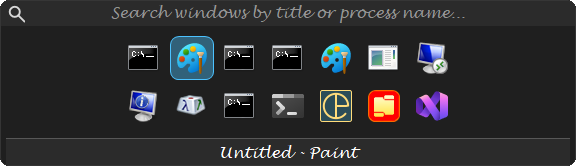

It is a second view over the same list, not a second switcher. The same windows, the same fuzzy filter, the same selection and the same activation, so searching, the three hotkeys, Delete, Shift+Delete, the middle click and the context menu all work in it without anything being said twice. The caption keeps the matched-letter highlighting too — with no titles on screen it is the only place a search can show what it matched.
Things that are particular to it:
- It has a width of its own,
[General] IconsWidthPercentage, default 30% against the report view's 45. The two views want different widths: a row per window needs room for long titles, a grid of small cells does not. The grid is centred in whatever that leaves over. - The width does not follow how many windows are open. It is a fixed percentage rather than a fit to the icons, so the switcher is the same size every time it opens. A window that is a different size on every invocation is harder to use than one with space around its contents, because nothing is ever where it was last time.
- The rows are balanced rather than filled. Twelve icons in room for eleven are drawn 6 + 6, not 11 + 1 — a full row with one icon stranded under it is what "as many as fit" always looks like. The grid never needs more rows, or a wider one, than filling would.
- The shape stays put while you are closing things. Balancing re-derives the arrangement from the count, so each close would otherwise reshuffle the grid under a pointer that is clicking through it. It is frozen for as long as the window holds its size, by the same rule as growing and shrinking above.
- There is no scrollbar and no close button. It scrolls by moving the selection, which always keeps the selected cell on screen; a 16-pixel button on a 48-pixel cell is not a target, so the middle click and the context menu are how you close a window from here.
- Arrows mean two different distances. ↓ and ↑ move a whole grid row and stop at the ends; ← and → move one icon and wrap onto the next row, the way Tab already does. When every icon fits on one row, ↓ and ↑ move one icon too — there is no row to step to, so they do what → and ← do rather than nothing, and the list habit of ↓ for the next window still works.
- Hovering a cell describes it. The information tooltip matters more here than in the report view — a cell is an icon, and the caption names only the selected window, so without it two windows of one application are indistinguishable. It appears below the whole switcher rather than under the cell, so it cannot cover the caption, and it stays in one place instead of following the pointer across the grid.
The live preview
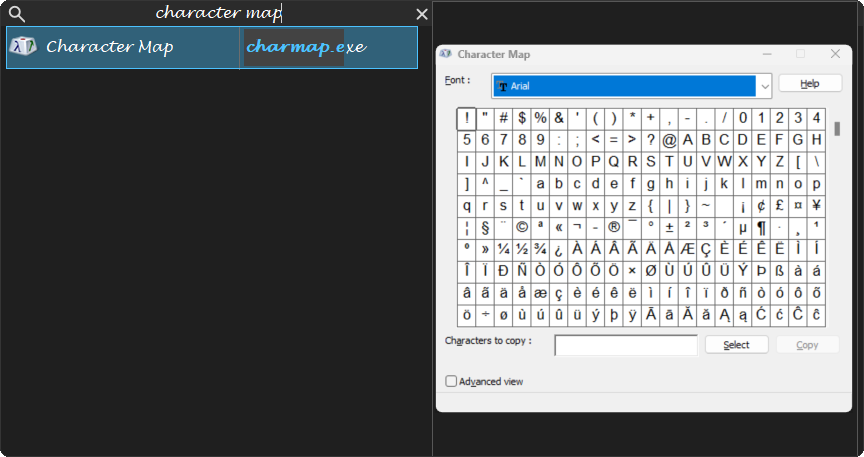
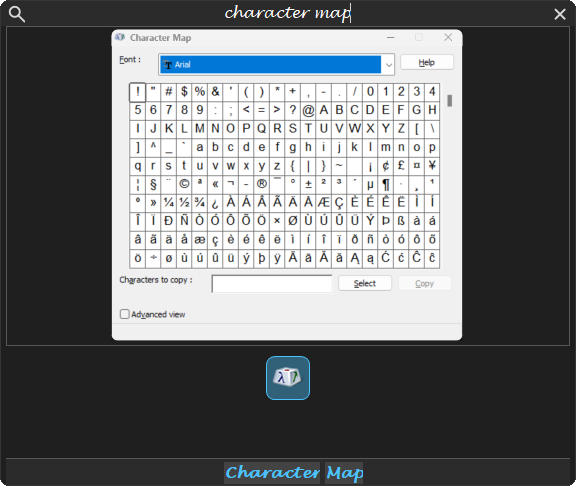
[General] ShowWindowPreview adds a live picture of the selected window. It is off by default, because the pane is the largest thing in the switcher once it is there.
Where it goes
[General] WindowPreviewPlacement chooses, and it means the same thing in both views:
| Auto | Beside the list in the report view, above the grid in the icons view. What AltTab has always done, and still the default. |
| Beside | A column to the right of the list or the grid. |
| Above | A band across the full width, between the search box and the list. |
| Below | The same band, under the list. |
| Middle | The icons view's own: the band between the grid and its caption, so the selected window's name sits directly under its picture. The report view has no caption, so there it is the same as Below. |
[General] WindowPreviewPercentage is how much it takes — the width when it sits beside, the height when it is a band. 50 by default, which is what the pane was fixed at before there was a choice.
The preview keeps the shape of a window whatever the list does. Its height is never less than 16:9 of its own width, within WindowHeightPercentage — so with one or two windows listed the switcher grows to fit the picture rather than squeezing it into a strip. A band takes its share as a minimum and grows past it only into room the rows are not using.
A window smaller than the pane is shown at its own size, centred, rather than stretched to fill it; stretching blurs it and makes a small dialog look like a large window.
The switcher is opaque while the preview is on, whatever WindowTransparency says. The preview is always drawn solid, so a see-through switcher would show the previewed window twice: sharp in the pane and faint behind it.
The band placements are usually the better shape, and it is worth knowing why. A column beside a list is nearly square; the window it is showing is not. On a 1920-pixel monitor with the switcher at its default width, the column is about 400 × 430 and the picture inside it about 400 × 224 — so roughly half the column is empty, at the same time as the list has lost half its width and has started eliding long titles. A band is the shape of the thing it shows, and the titles keep their room.
What the rows say while it is on
[ListView] RowLabel decides, and Auto — the default — ties it to the preview: with the preview on, each row shows the application's name with its executable beneath, the shape Task Manager uses; with the preview off it shows the window title, as it always has.
The reasoning is that the preview makes the title redundant. A title is how you tell two windows apart when you cannot see them — and once a live picture of the selected window is on screen, the question the row still has to answer is which application this is. The name comes from the executable's own file description, so Code.exe reads as Visual Studio Code.
The name uses the window list's own font, so these rows match every other row in the switcher, and the row grows a little taller to hold two lines. The executable beneath it is the exception: it is smaller, its colour is pulled back towards the row behind it, and by default it is drawn in the shell's plain interface face — [ListView] RowLabelFont, which you can set to ListFont to have both lines in the same face.
That split is deliberate. A decorative or italic font carries a title perfectly well, and makes a smaller subtitle underneath it hard to read — so the face you chose for the list stays on the line that is a title, and only the second line gets a plain one. Its size follows the name's, three points smaller by default — [ListView] RowLabelExePoints, or Executable size on the Appearance page — so the two stay in proportion whatever size your list font is. It never drops below 7pt however large you make that number, and 0 draws it at the name's own size, which still reads as subordinate through its plainer face and faded colour.
Set it to Title or Application to have one regardless of the preview. The second line is dropped when the process name already has a column of its own, so nothing is shown twice. One trade-off worth knowing: while you are typing, matched letters can only be highlighted in text that is on screen, so a match in a title you have hidden cannot light up.
What a band costs instead is height: it comes out of the same budget as the rows, so fewer rows are visible and the list scrolls sooner. Lower the percentage if you would rather have the rows.
It is a desktop-compositor thumbnail, the same mechanism the taskbar's own previews use, so it is genuinely live and costs nothing to keep that way: nothing is captured, copied or polled. The window's frame and title bar are included, and the aspect ratio is kept, so a wide window is letterboxed rather than stretched — both matter for recognising the window you are choosing between.
Two things worth knowing:
- A minimized window has no live surface, so its icon is drawn large instead. An empty pane would read as a broken preview rather than as a minimized window.
- The preview stays fully opaque on a translucent switcher. The compositor draws it over the window rather than through it, so
WindowTransparencydoes not reach it. That is the right way round for something whose job is to be legible.
The thumbnails view
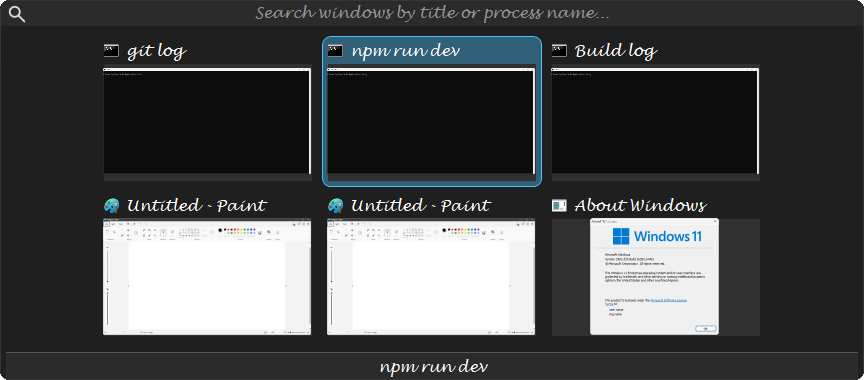
[General] SwitcherLayout = Thumbnails, on the Appearance page: every window as a live picture, as Windows' own Alt+Tab shows them, with its icon and title above. It is the icons view's grid with larger cells, so the keys, the caption and the context menu work the same way. A minimized window has no live picture and shows its icon instead.
Windows on other desktops
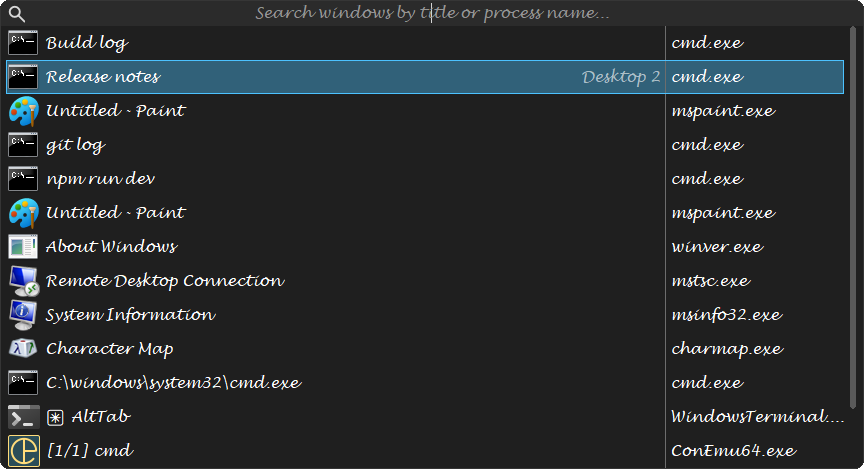
[General] DesktopScope, on the Appearance page. Current (the default) lists only this virtual desktop's windows, which is what AltTab always did. All lists every desktop's, and Others only the other desktops'. A window on another desktop carries that desktop's name at the right of its row, and choosing it takes you to its desktop.
Ordering the list
[General] WindowOrder, on the Searching page: Recent (the default — the order you used the windows in), Title (alphabetically), or Application (each application's windows together, the most recently used application first). It applies before anything is typed; a search ranks its own results. A sorted order also changes what a quick Alt+Tab goes to — the next window in that order, rather than the one you were in before.
[General] MinimizedLast puts minimized windows at the end, in their usual order there.
One row per application
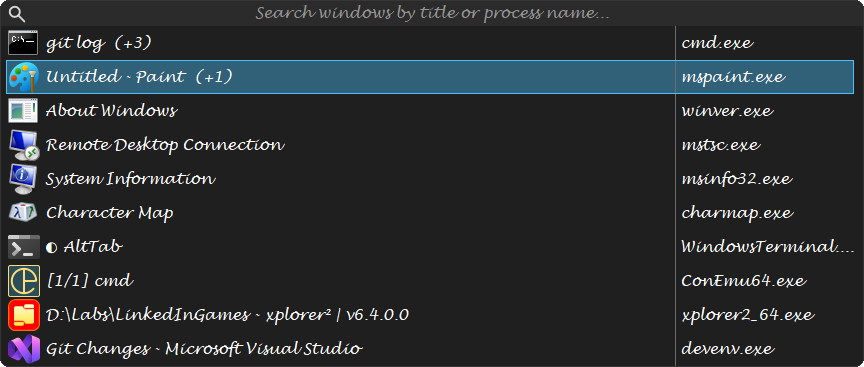
[General] GroupByApplication, on the Searching page, off by default. Before anything is typed, each application has one row — its most recently used window — with the number of its other windows after the title. → shows that application's windows beneath its row; ← folds them away again:

A search lists every window as usual. With this on, a quick Alt+Tab goes to the next application rather than the next window, which is what grouping means.
Long titles, and the application's name
[ListView] TitleEllipsis, on the Appearance page, decides where a title too long for its row is cut: End (the default), Middle — so a document's name and the application after it both survive — or Start. The letters a search matched stay highlighted in whatever is left.
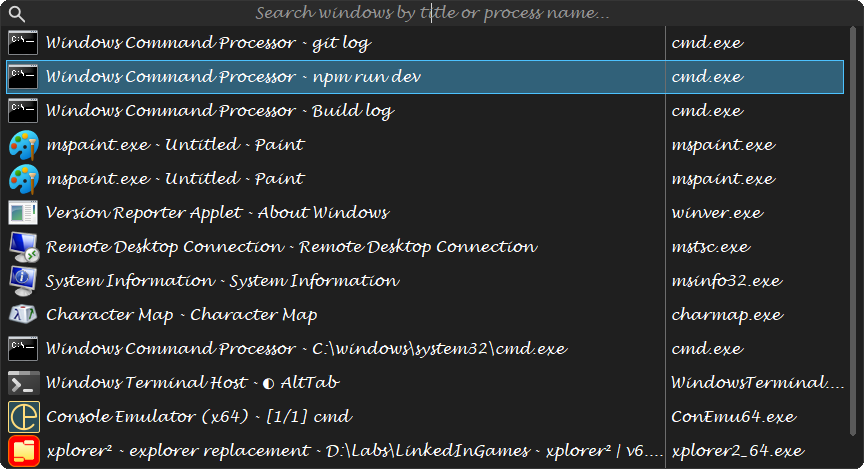
[ListView] RowLabel = Both puts the application's name before the title on one line:
The pointer
[General] CursorFollowsFocus, on the Mouse page: after you choose a window, put the mouse pointer in the middle of it — Always, or OtherMonitor only when the window is on a different monitor from the pointer, which is when finding the pointer again is the nuisance. Never is the default.
Only the windows on one monitor
[General] CurrentMonitorOnly lists only the windows on the monitor the switcher opened on. The check box is on the Appearance page, directly under Show it on, which is the setting it works with.
It is not the same setting as "Show it on", and that is the whole point of it. That one decides where the switcher appears; this one decides what it lists. Together they mean "open on the screen I am working on, and show me what is on it" — which on a two-screen desk is the difference between thirteen rows and eight.
- A window belongs to whichever monitor holds most of it, which is the rule the shell uses for which taskbar it appears on — so a window straddling two screens is listed where you would say it is.
- The monitor is decided when the switcher opens and held until it closes. With Show it on set to Cursor the answer would otherwise change the moment the mouse crossed onto the other screen, and the entire list would be swapped out mid-gesture while you were reading it.
- A monitor with nothing on it gives an empty switcher, deliberately. Falling back to every window would make the setting silently do nothing some of the time, and there would be no way to tell that from a fault.
- It never costs you a window it cannot place. One screen, a monitor unplugged mid-gesture, or anything else it cannot answer leaves the list exactly as it would have been without the setting.