Switching within one application
Hold Alt and tap ` — the key above Tab on a US keyboard — and the switcher lists only the windows of the application you are currently in.

It behaves like the main gesture: tap ` again to keep moving, Shift+` to go back, release Alt to commit. If the application has only one window, there is only one row.
This is useful the moment an application has several windows and the full list has thirty: three documents in one editor, four Explorer windows, two terminals.
Inside the main switcher the same key does the related thing: ` jumps to the next window of the same application as the selected row, wherever it happens to be in the list, and Shift+` to the previous one. So you can Alt+Tab into the middle of the list, then walk through one application's windows from there.
Applications treated as one
Two executables are often one application in the way you think about them: notepad.exe and notepad++.exe, or every browser you have installed. [Backtick] SimilarProcessGroups tells AltTab which those are, and the Processes page is where you edit it.
An example: a command prompt and a terminal
These really are two different programs -- cmd.exe and Cmder, or Windows Terminal -- and the shipped settings already group them, so there is nothing to configure before trying it:
- Open two or three command prompts and a terminal.
- Click one of the command prompts, so it is the window in front.
- Press Alt+`.
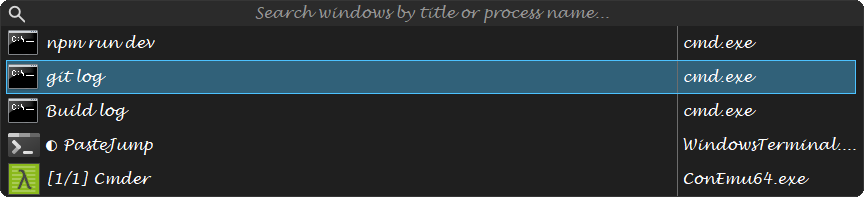
Both applications are in that one list -- three command prompts and Cmder, and nothing else that is open -- because the group cmd.exe/WindowsTerminal.exe/conemu.exe/conemu64.exe makes them one application as far as Alt+ is concerned. Keep Alt held and tap again and the selection walks through all four; Alt+Tab would show them scattered among everything else on the machine.
Take the terminal out of that group and Alt+` from a command prompt lists the command prompts only, with the terminal somewhere in the Alt+Tab list instead. Putting an executable into a group is what moves it in here, and the rest of this page is how.
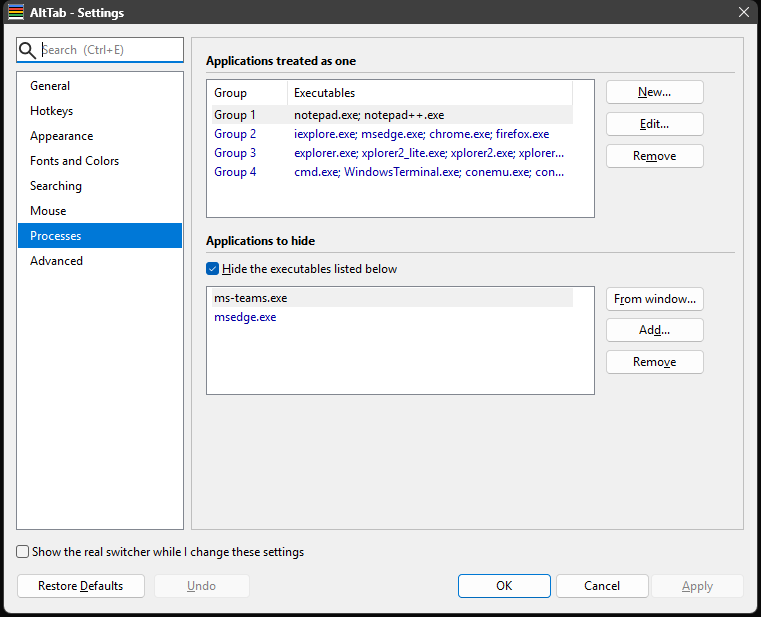
Each group is a row, showing its members separated by semicolons — a comma would be ambiguous, since a comma is a legal character in a file name. New... starts a group, Edit... opens the selected one, and Remove deletes it.
Inside a group, From window... is the one to reach for: it lists what is running, by icon, executable and the windows using it, so you point at an application instead of spelling its file name from memory. Add... takes names typed by hand, several at once, for something that is not running.
The default groups the common cases — Notepad and Notepad++ are one application; the four browsers are one; Explorer and xplorer2 are one. With that in force, Alt+` in a Notepad++ window offers the Notepad windows too.
An executable belongs to one group only — the groups are mutually exclusive. The page refuses a second claim and names the group that already has the executable, so this is hard to do by accident there. It is easy to do by hand-editing the file, or by importing settings from an older version, so AltTab settles it on its own terms when it reads the file: the first group to claim a name keeps it, and the later group loses it. A group left with fewer than two names is then dropped, because it cannot make anything the same as anything else.
Two things follow that are worth knowing before you edit the file by hand:
- Overlapping groups are not merged into one. Writing
a.exe/b.exe|b.exe/c.exedoes not make all three one application. It makesa.exeandb.exeone, and leavesc.exeon its own. Merging would mean a single repeated name could silently fuse two groups you meant to keep apart. - The corrected form is what you will see afterwards. The Settings dialog and the file show the groups AltTab is actually using, not the text you typed — so if a name disappears from a group, it was already in an earlier one.
Names are matched without regard to case, and a name may not contain any of \ / : * ? " < > |.
In the file it is all one string: groups separated by |, executables within a group by /.
notepad.exe/notepad++.exe|iexplore.exe/msedge.exe/chrome.exe/firefox.exe|explorer.exe/xplorer2.exeYou never have to type that — the page writes it for you — but it is the form the Advanced page shows, and the one to use if you edit the file by hand.
Choosing a different key
` is only the default. The combination is [Hotkeys] AltBacktick, editable on the Hotkeys page — which matters on keyboards where the backtick is somewhere else entirely, 0xDC on an Italian layout and 0xDE on a French one. Key names are stored in AltTab's own spelling rather than the keyboard layout's, so a settings file written on one layout means the same thing on another.