Getting started
AltTab is a small Win32 application that replaces the Windows task switcher. It runs from the notification area, installs a keyboard hook so it can answer Alt+Tab, and otherwise stays out of the way.
Requirements
| Windows | Windows 10 or Windows 11. It also runs on Windows 7 and 8.1, with the caveat below. |
| Architecture | x64. There is no 32-bit build. |
| Disk | A few megabytes. Nothing is written outside AltTab's own folder. |
Two pieces of polish depend on the Windows version, and neither stops it working:
- Rounded corners are drawn by the desktop compositor on Windows 11. On Windows 10 the setting still applies, using a clipping region — which works, but the corners are aliased rather than smooth. See Appearance and themes.
- A dark scrollbar in the window list needs Windows 10 1809 or later. On anything older the list keeps the light one whatever colours you choose.
Installing
There is nothing to install. Unpack AltTab_<version>_x64.7z wherever you like and run AltTab.exe. It is a portable application:
| File | What it is |
|---|---|
AltTab.exe | The application. |
AltTabSettings.ini | Your settings. Created on first run if it is not there, filled in with the defaults and a header explaining the format. |
AltTab.chm | This help. F1 in the switcher opens it. |
ReadMe.txt, ReleaseNotes.txt | Both reachable from the tray menu. |
Put it somewhere you can write to. C:\Program Files... will work, but AltTab keeps its settings beside the executable, so a folder needing administrator rights means every settings change needs them too.
To have it start with Windows, use Run at Startup in the tray menu rather than a shortcut in the Startup folder — it registers a scheduled task, which is also what makes Always run as Administrator possible without a prompt at every login.
The first thing to try
- Open two or three windows.
- Hold Alt and tap Tab. The switcher opens with the window you used before this one already selected, so releasing Alt straight away swaps between the last two windows.
- Keep Alt held and tap Tab again to move further down the list. Shift+Tab goes back up.
- Let go of Alt. The selected window comes to the front.
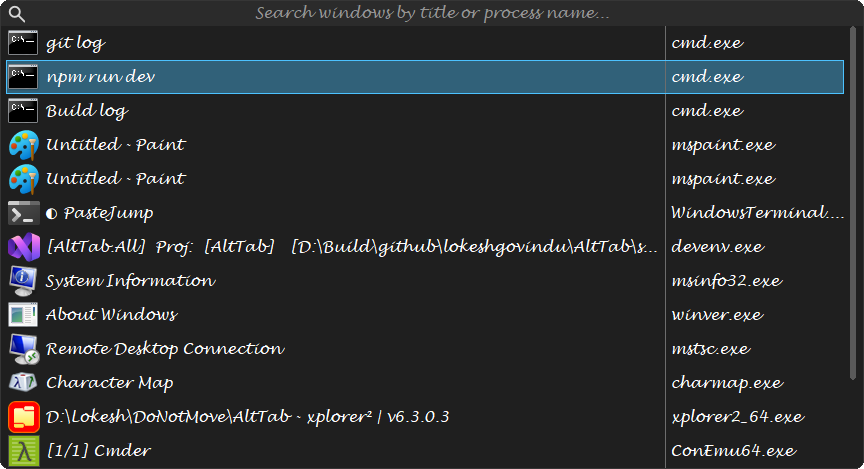
Then try the part the native switcher cannot do:
- Open it again and start typing part of a title —
paifor Paint, say. The list narrows as you type and the letters that matched are highlighted. - Press Enter.
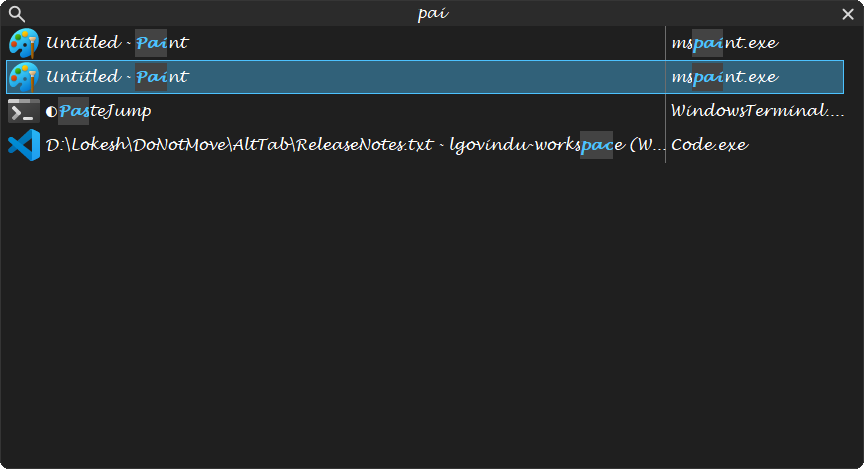
Once you have typed something, releasing Alt no longer commits — see Finding a window for why. Press Enter, click the row, or press Escape to give up.
Where things are
| Settings | AltTabSettings.ini, beside AltTab.exe. Editable by hand; AltTab notices it changing and reloads. See the settings reference. |
| Log | %LOCALAPPDATA%\AltTab\AltTab.log, and only in builds that include the logger. The published ReleaseNoLogger build writes nothing. |
| Settings dialog | F2, or Settings in the tray menu. |
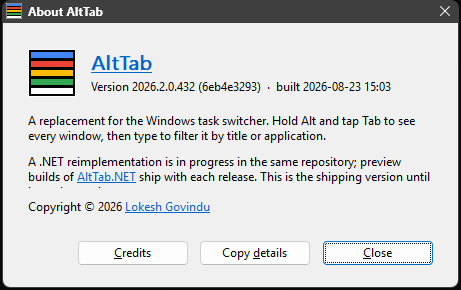
| Version | Shift+F1, or About AltTab in the tray menu. It has a Copy details button for bug reports. |
Uninstalling
Exit it from the tray menu, turn off Run at Startup first if you switched it on (that removes the scheduled task), and delete the folder. Nothing is left in the registry. The only file outside the folder is the log, if a logging build ever ran: %LOCALAPPDATA%\AltTab.