AltTab help
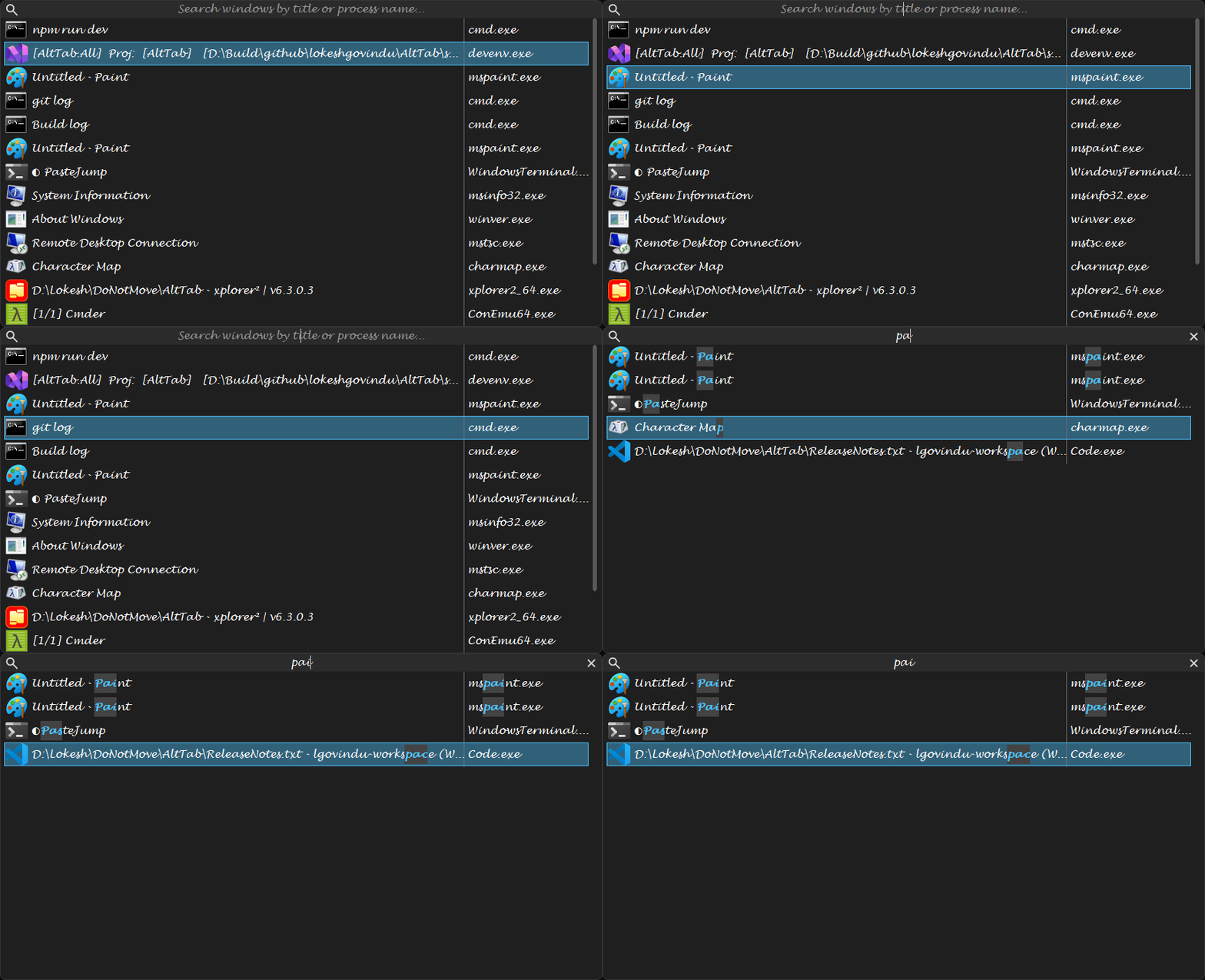
AltTab replaces the Windows task switcher. Hold Alt and tap Tab to see every open window, then type to filter the list by title or by application.
There is also a one-minute walkthrough of most of what it does, if you would rather watch than read.
Contents
| Getting started | Installing it, the first thing to try, and where its files live. |
| The switcher | What everything in the window is, what the mouse does, the two views, and the live preview. |
| Hotkeys and keys | The three gestures, how to change them, and every key the switcher answers. |
| Finding a window | Typing to filter, and how close a match has to be. |
| Switching within one application | Alt+` , and teaching AltTab that two executables are one application. |
| Closing and terminating | Closing a window, ending a process, and doing it to all of them. |
| Appearance and themes | Size, position, transparency, fonts, colours, thirty-one palettes. |
| The Settings dialog | Page by page, including the live preview. |
| The tray icon | Its menu, its two click gestures, and running elevated. |
| Settings reference | Every key in AltTabSettings.ini, generated from the application. |
| Troubleshooting | Hotkeys that do nothing, elevated windows, and what to send in a report. |
| About AltTab | What it is, what it needs, which build you are running, and the licence. |
| Contact | Where to report a problem, what to put in the report, and when to use email. |
In a hurry
| Gesture | What happens |
|---|---|
| Hold Alt, tap Tab | The switcher opens with the previous window selected. Tap again to keep moving. |
| Hold Alt, tap ` | Only the windows of the application you are in. |
| Ctrl+Alt+Tab | The switcher opens and stays open when you let go. |
| Type anything | Filters the list. Releasing Alt no longer switches; press Enter when you have found it. |
| Delete / Shift+Delete | Close the selected window / end its process. |
| Middle-click a row | Close that window without leaving the switcher. Shift ends its process. |
| Apps or right-click | The context menu, on the selected window. Escape closes the menu and leaves the switcher. |
| F2 | The Settings dialog. F1 for this help, Shift+F1 for the version. |
Everything on this page is also in the CHM (AltTab.chm, or F1 in the application), which is built from these same files.